Nulaxy Ergonomic Laptop Stand
Pros
- Raises screen to eye level immediately
- Folds flat for portability
- Improves airflow and reduces heat
Cons
- Requires external keyboard to use comfortably
- Not adjustable once set in position

The right accessories make any laptop more comfortable, more productive, and easier to work from every day.
Last updated: April 2026
A $1,200 laptop used flat on a desk with no external peripherals will make you less productive than a $500 laptop set up correctly with a stand, keyboard, and mouse. The accessories shape how you interact with your machine for hours every day. Ergonomics, cable cleanliness, and the number of available ports all affect your output. Accessories are not optional extras — they're half the workstation.
The smart approach is to build your setup in layers. Start with the highest-impact items and add from there. A laptop stand paired with an external keyboard and mouse is the first layer — this costs under $150 and transforms any laptop into a more ergonomic workstation. Layer two is a USB hub, which solves port shortages and routes all your peripherals through one cable. Layer three is a desk pad and cable management, which turn a functional setup into a clean one. Layer four — a docking station — only makes sense once you have multiple monitors or a fully permanent desk setup.
Cost-effective upgrades live in layers one and two. The premium items (a $200 dock, a $280 pair of noise-cancelling headphones, a $110 keyboard) are worth the investment for full-time remote workers, but they're not where you start. This guide covers all twelve items you'll need to build a complete workspace, from a $8 cable clip pack to a multi-display docking station.
Start with the stand, keyboard, and mouse — nothing else. These three items change how you physically interact with your laptop all day. A stand at eye level plus an external keyboard means you're no longer hunching. For under $150, this combination delivers the biggest quality-of-life improvement in the list. Don't skip to the dock or the privacy screen first — the foundation comes first.
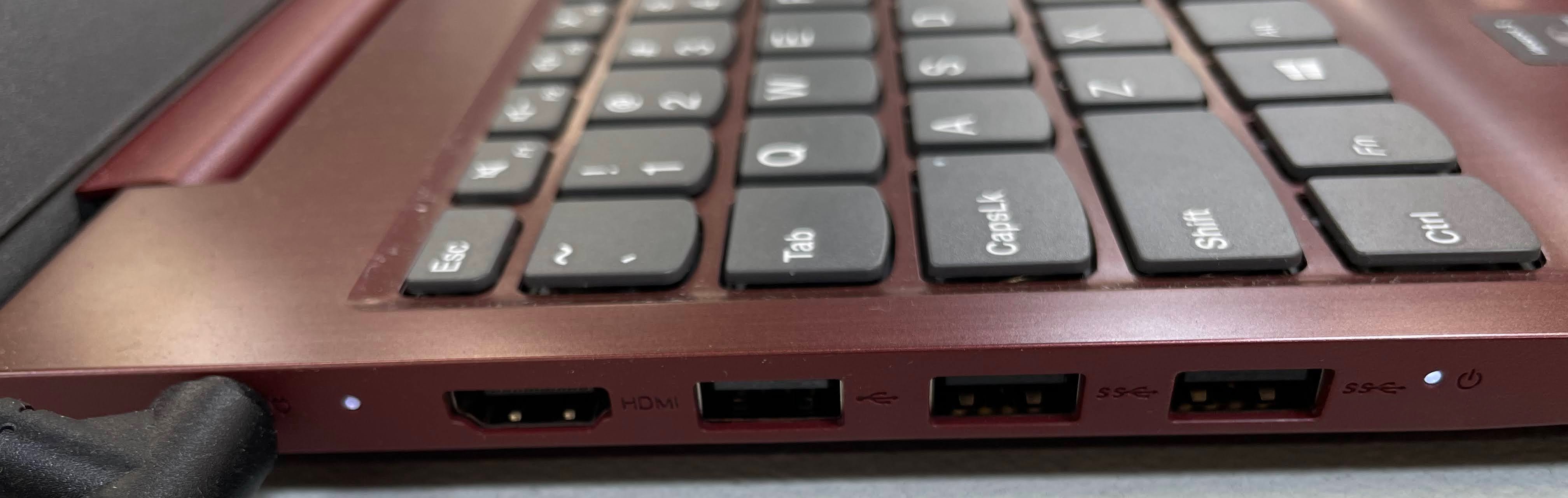
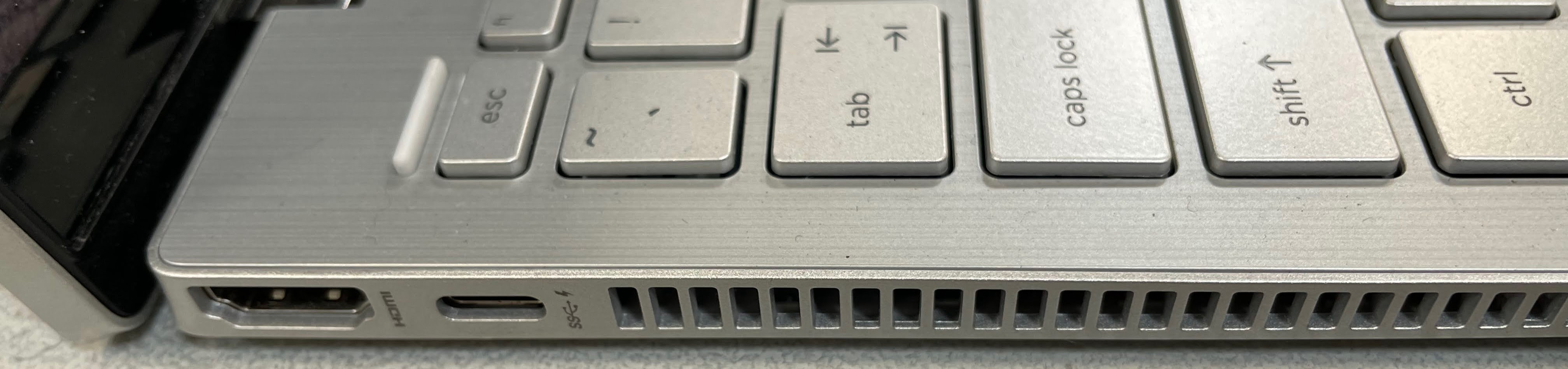
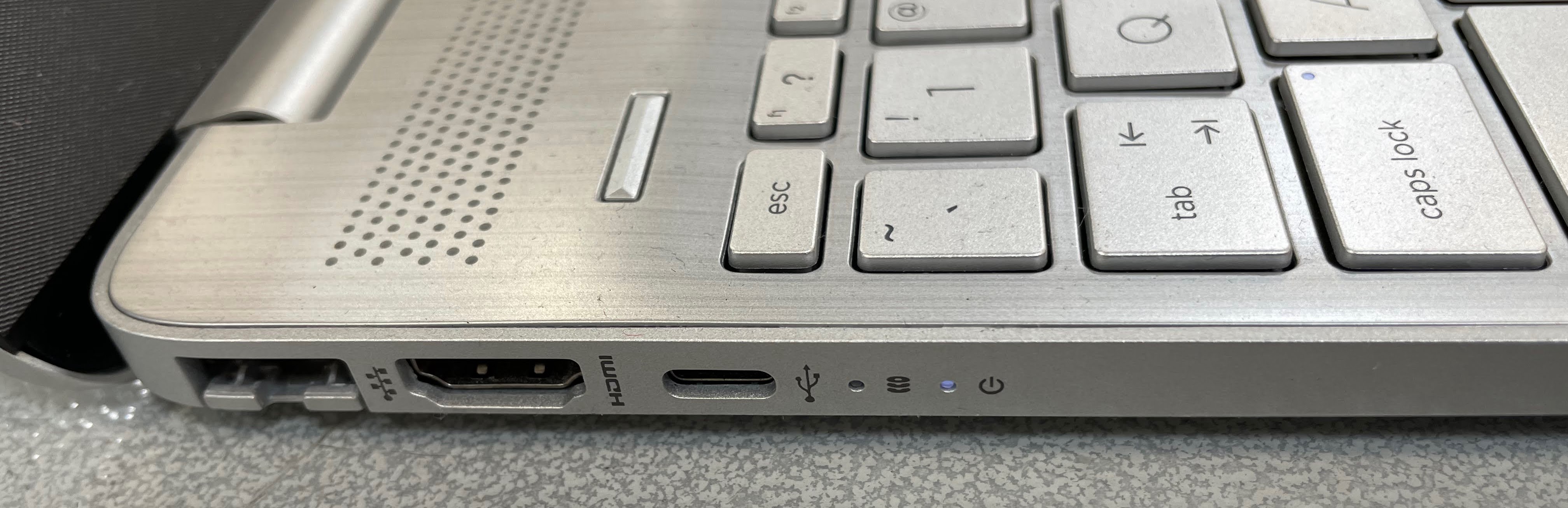
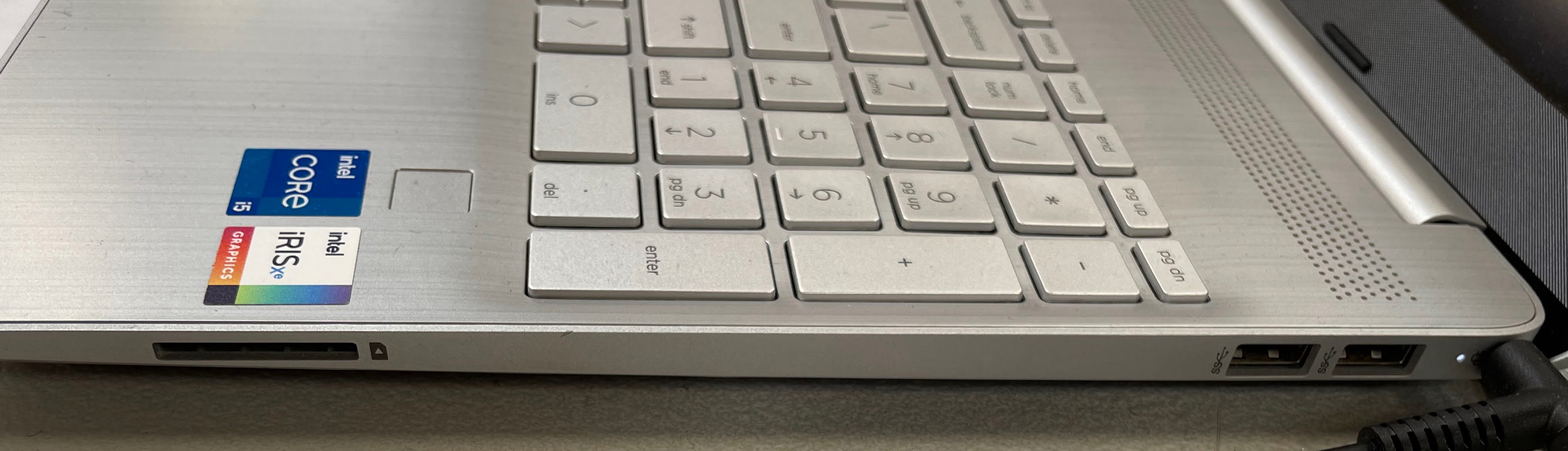
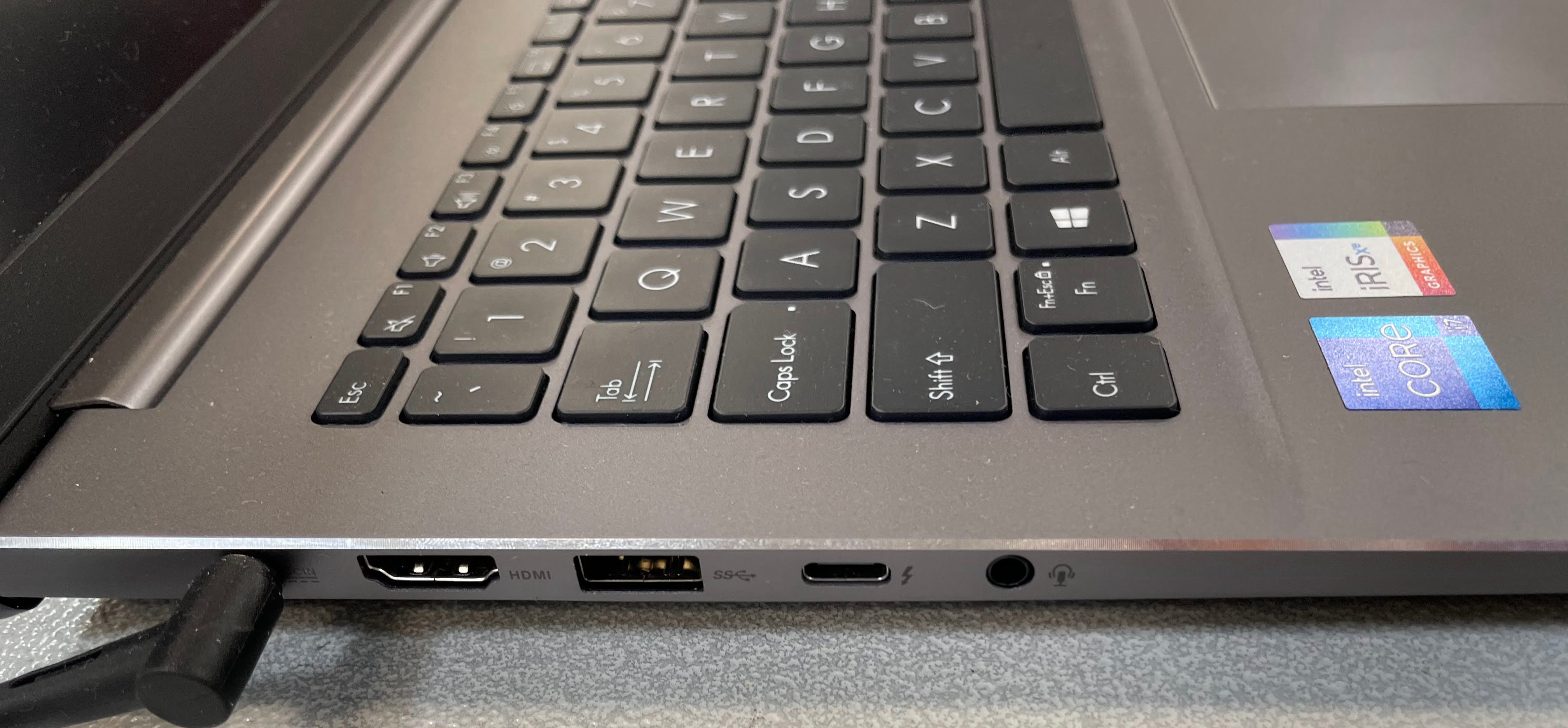
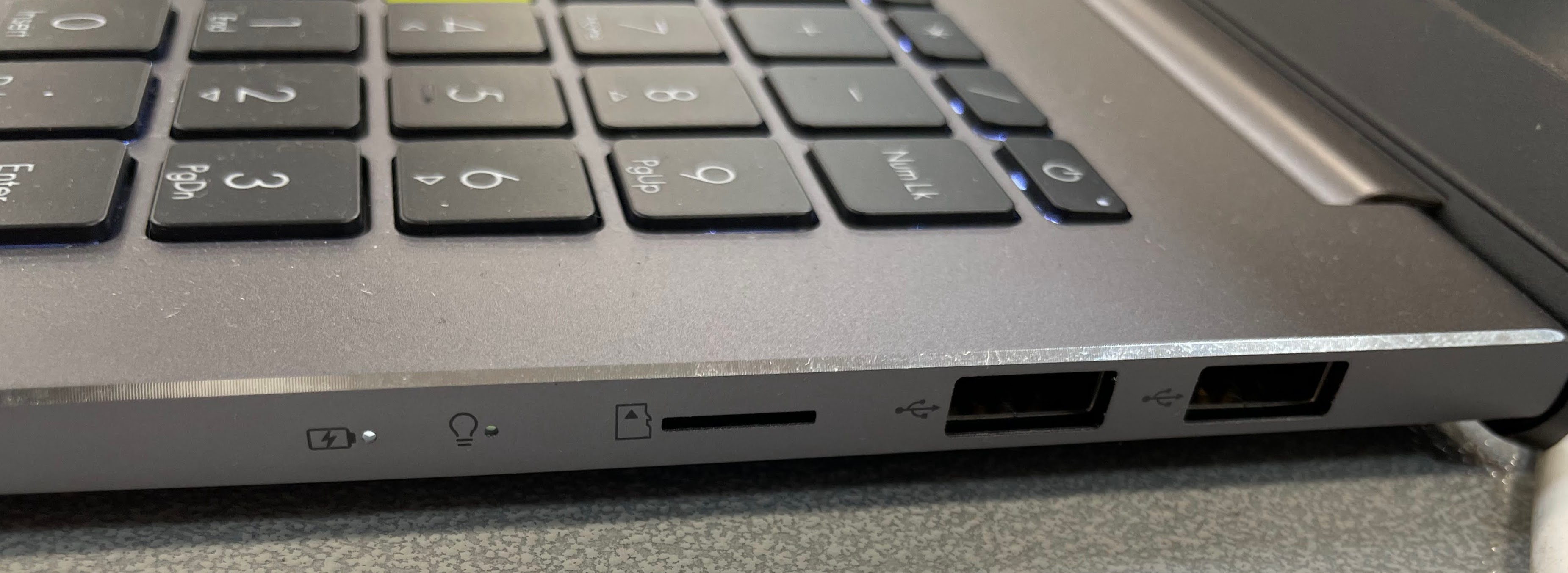
Add the hub before anything else. Once you have the stand, keyboard, and mouse, you'll immediately notice you're out of USB ports. A 7-in-1 USB-C hub solves this and also adds HDMI so you can connect an external monitor if you have one. This is your layer-two purchase — and at $35 to $50, it's a no-brainer for any laptop workspace.
Clean the cables once you have everything plugged in. A $8 cable clip pack and 20 minutes of routing cables along the desk edge will make your setup look deliberate instead of messy. Pair the clips with a desk pad and the whole surface looks unified. Don't spend money on premium cable management trays until you've tried the clips first — they solve 90% of desk cable problems.
The dock comes last, and only if you need multiple monitors. If you're running one external display, a USB-C hub handles it. A docking station is for permanent setups with two or more monitors, wired Ethernet, and a single-cable-connect workflow. If you're not sure, start with the hub. You can always step up to a dock later without wasting money.